Events
Event tracking builds the activity record that drives promotion eligibility, award nominations, and monthly reports. Every meeting, activity, and convention appearance should be logged.
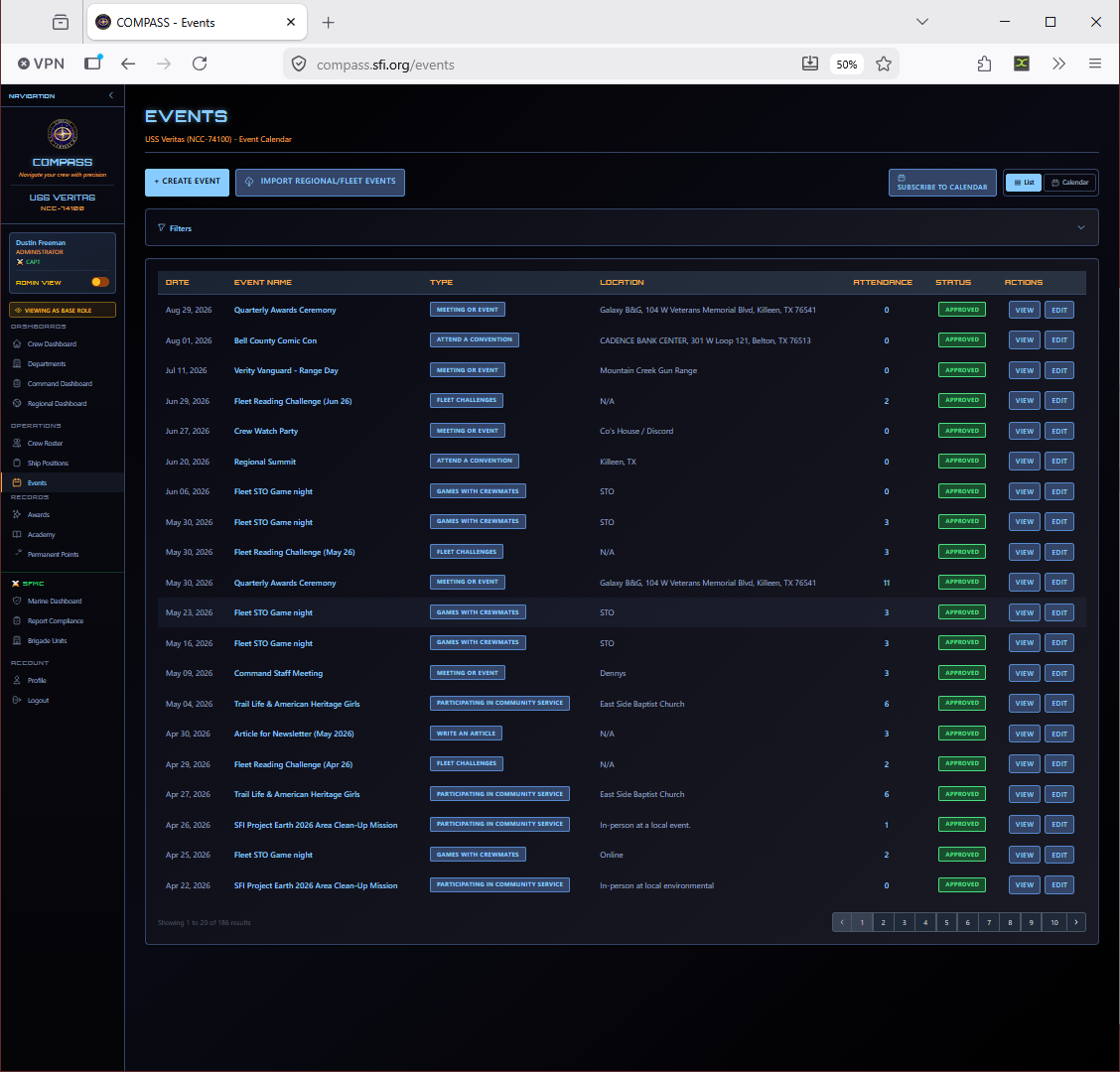
Go to Events in the left navigation.
Creating an Event
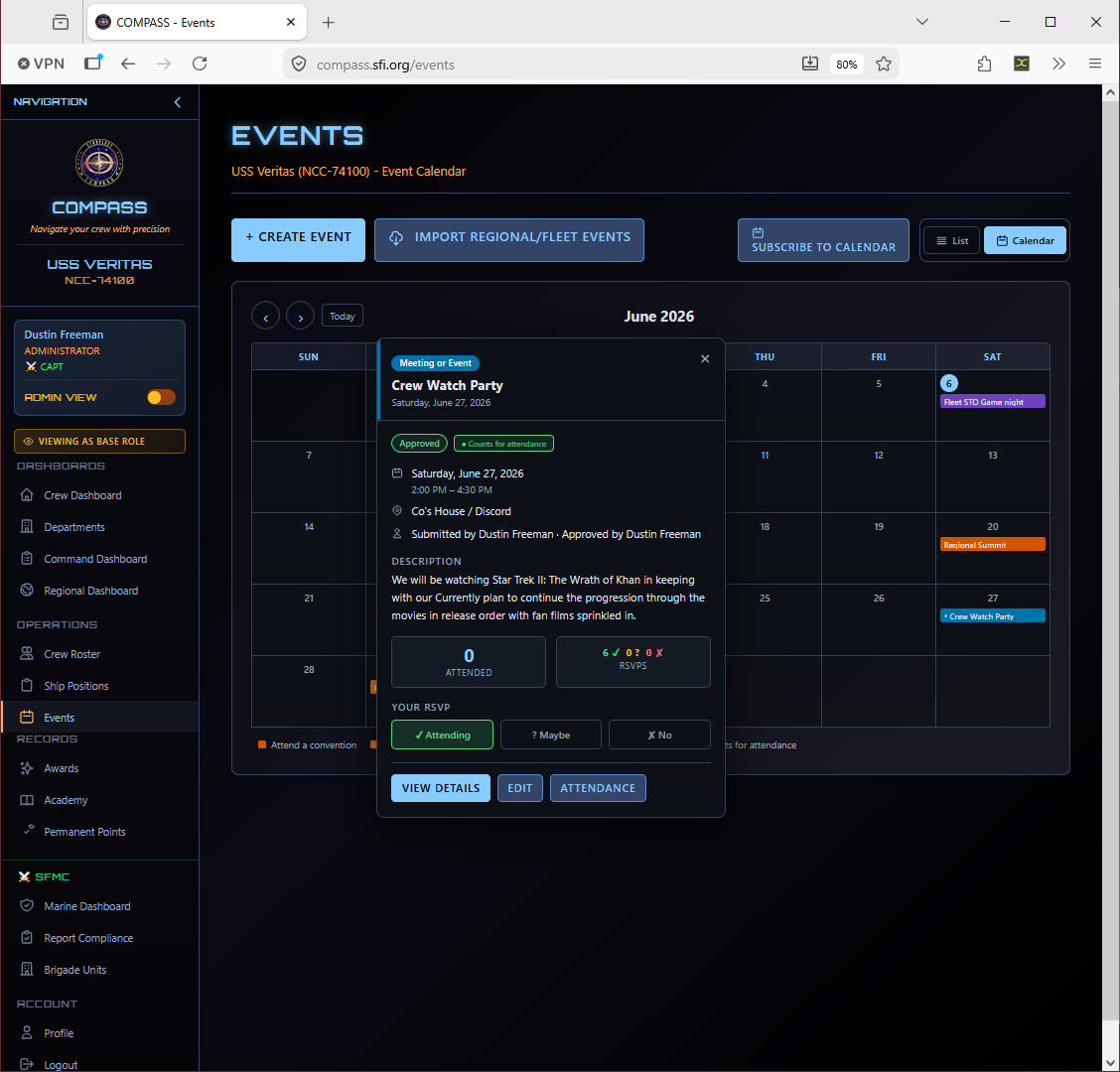
Click Create Event from the Events page.
Required fields:
- Event Name — A descriptive title (e.g., "June Monthly Meeting", "Regional Summit 2026")
- Event Type — Determines point value (see below)
- Date — The date the event occurred
- Attending Crew — Check each member who attended
Event Types
| Type | Examples |
|---|---|
| Monthly Meeting | Regular ship meetings |
| Ship Activity | Social events, watch parties, game nights, group outings |
| Convention | Regional Summit, local or national cons |
| Community Service | Charity work, outreach, public service activities |
| Training / Academy | Study groups, test prep sessions |
Point values per event type are configured per ship in Ship Settings → Event Points. Your RC may set regional defaults that apply automatically.
Recording Attendance
Check each crew member who attended when creating the event. You can edit attendance after the fact by opening the event and clicking Edit Attendance.
Tip
Enter attendance the same day or the next morning. Remembering who attended two weeks later is much harder — and missing attendance means missing points toward promotion eligibility.
Plan / Host Credit
Members who plan or host an event can be credited directly on that event — you no longer need to create a separate "Plan or Host an event" entry just to give someone that credit.
On any event you can manage (you hold attendance permission, or you created the event), open the event and click Plan / Host Credit. A window lists your active crew — check everyone who planned or hosted, then click Save Host Credit.
- No one, one, or many members can be credited on a single event.
- Host credit is worth the "Plan or Host an event" point value, awarded on top of any attendance points. A member who both attended and hosted receives both.
- Unchecking everyone and saving removes all host credit from the event.
Credited members appear in a Planned / Hosted By list on the event page, and their host points flow into promotion totals and reports automatically. Host credit is not attendance — it will not inflate attendance counts or uniform-compliance figures.
Note
The standalone "Plan or Host an event" event type still works if you prefer it. This feature simply lets you record the same credit on the real event instead of entering a duplicate.
Editing or Deleting an Event
Open the event from the Events list and click Edit to change any details or update the attendance list. Events can be deleted if entered in error, but deletion is permanent — there's no undo.
Warning
Deleting an event removes all attendance records and the associated points for all attendees. If the event was just entered with the wrong date or wrong type, edit it rather than deleting and re-entering.
Sharing Events With Other Chapters
Your ship can publish an event to your region or the whole fleet so other chapters can add it to their own calendars — and you can add events other chapters have shared. See Sharing Events Between Chapters.
How Events Drive Promotions
Each attended event awards the attending crew member a number of activity points, based on the event type's configured point value. These points accumulate toward promotion eligibility requirements. You can see a member's point total and the events driving it on their profile under the Promotions tab.
Common Issues
I forgot to log an event from last month. Enter it with the correct past date — no problem. COMPASS doesn't restrict event entry by date.
A member's attendance isn't showing in their promotion record. Open the event and verify they're checked in the attendance list. Also check that the event type has a non-zero point value configured in Ship Settings.
I entered the wrong event type and points were awarded incorrectly. Edit the event and change the type. Points will recalculate automatically.