Promotions (RC)
As RC, you are the approving authority for all promotion submissions from ships in your region. This page covers the full regional review workflow for both standard and flag officer promotions.
How Submissions Reach You
When a CO submits a promotion in COMPASS, the member's row on their Promotion Eligibility Report changes to show Submitted for Approval with a Pending badge. The submission simultaneously appears in your Regional Promotions queue.
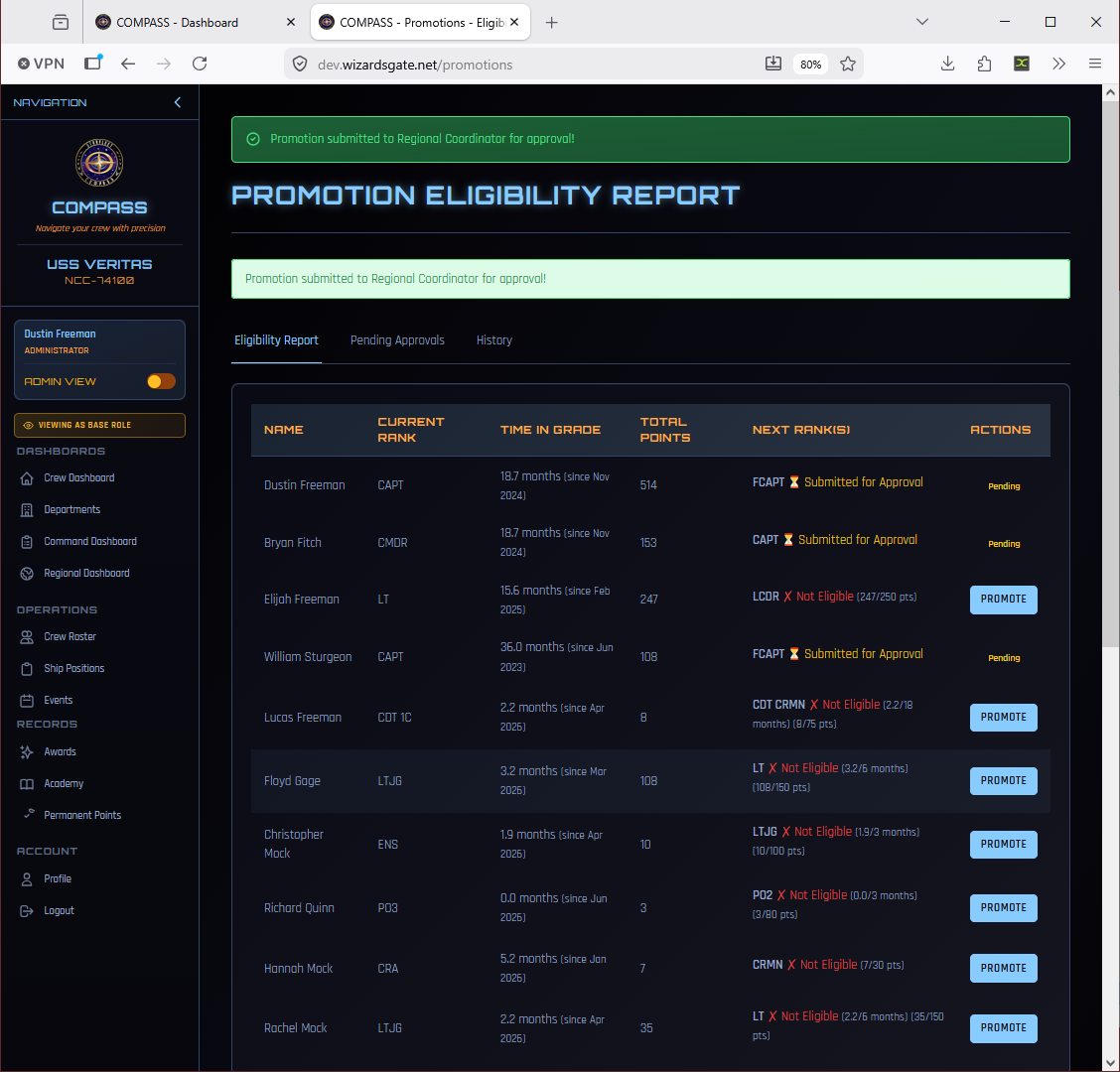
The Regional Promotions Page
Go to Regional Promotions in the left navigation (visible only with an RC-level role) to see all pending submissions across your region.
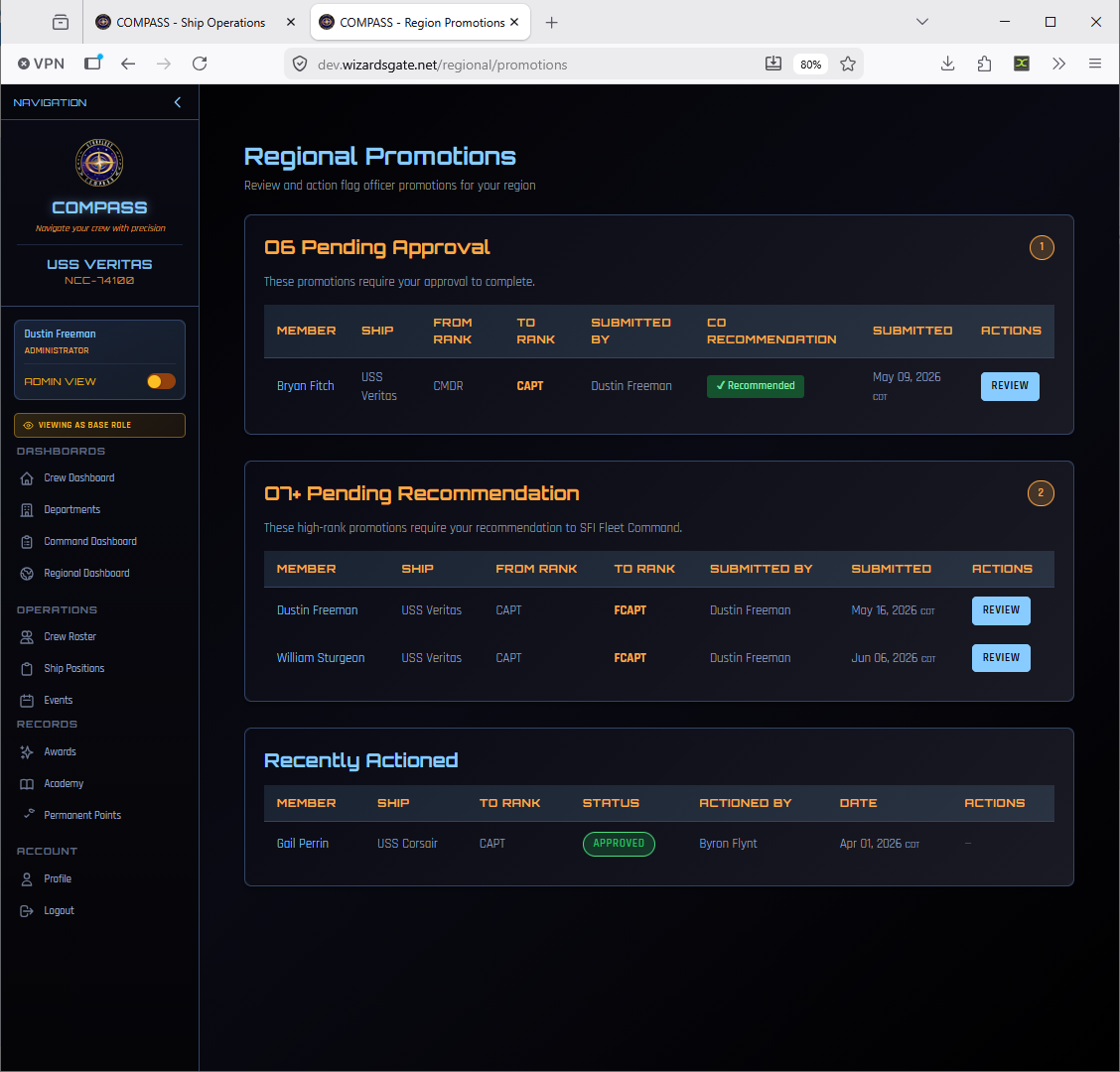
The page is divided into three sections:
| Section | Contents |
|---|---|
| O6 & Below Pending Approval | Promotions awaiting your direct approval: Captain promotions from ships, and unassigned members' own requests (see Approving Unassigned Member Promotions) |
| O-7+ Pending Recommendation | Fleet Captain and above awaiting your recommendation to SFI Fleet Command |
| Recently Actioned | All promotions you've recently approved, rejected, or forwarded — with current status |
Each row shows the member, ship, from/to rank, submitted by, submitted date, CO Recommendation status, and a Review button.
Reviewing an O-6 Promotion (Captain)
Click Review on any O-6 submission to open the review panel.
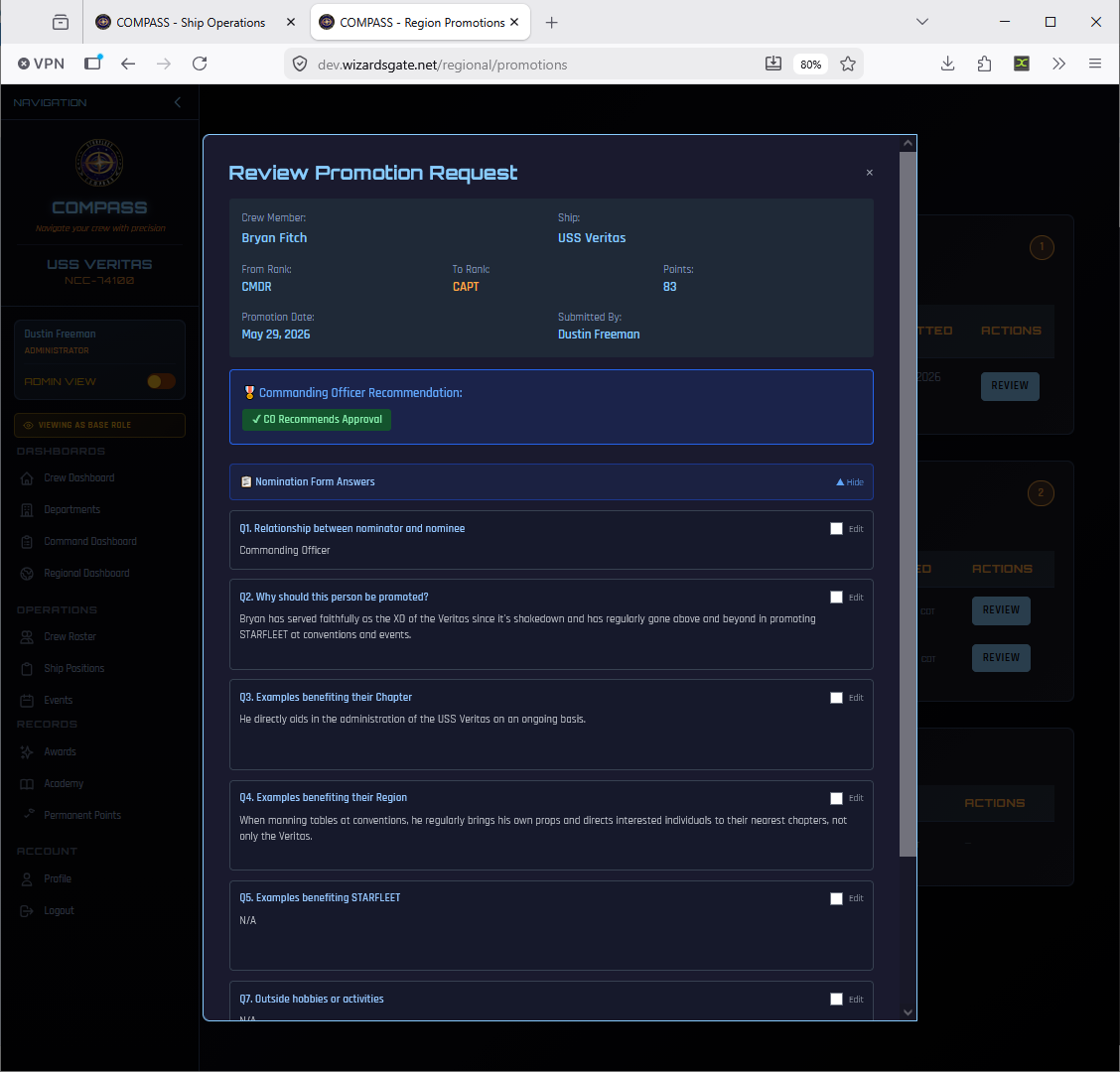
The panel shows:
- Member and ship details — name, ship, from/to rank, points, promotion date, submitted by
- CO Recommendation — green badge if the CO recommends approval
- Nomination Form Answers — the CO's narrative responses to all promotion questions
You can edit individual answers inline by clicking Edit on any question before approving — useful for correcting typos or clarifying answers before the record is finalised.
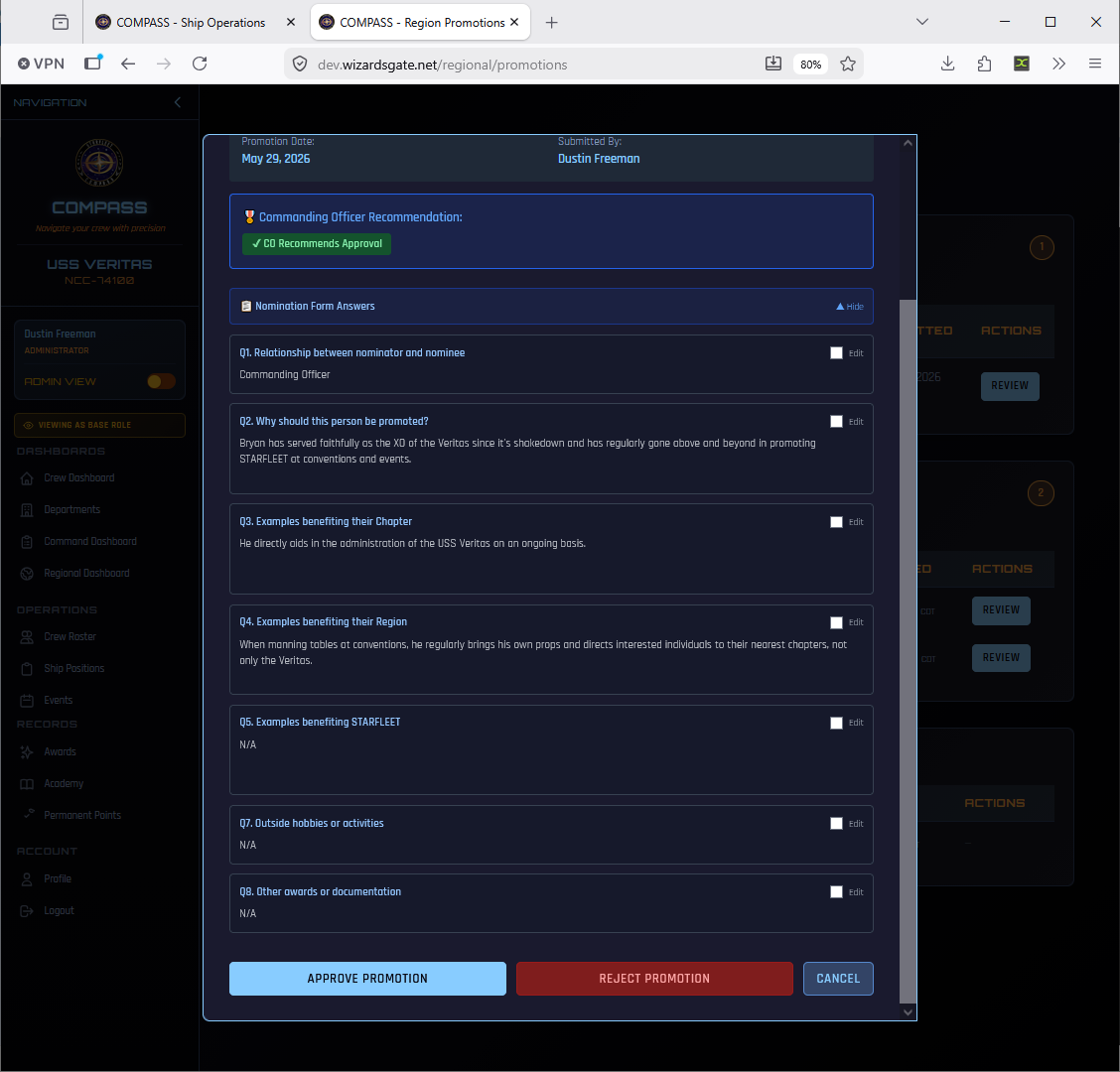
Approving
Click Approve Promotion. The member's rank updates in COMPASS immediately and they receive an email notification. The promotion moves to Recently Actioned with an Approved status badge.
Rejecting
Click Reject Promotion and provide a reason. The CO receives the rejection with your reason. The promotion is removed from the queue and the CO can correct and resubmit.
Reviewing an O-7+ Promotion (Fleet Captain and above)
O-7+ promotions cannot be approved at the regional level — your role is to review, endorse, and forward to SFI Fleet Command. Click Review on any O-7+ submission.
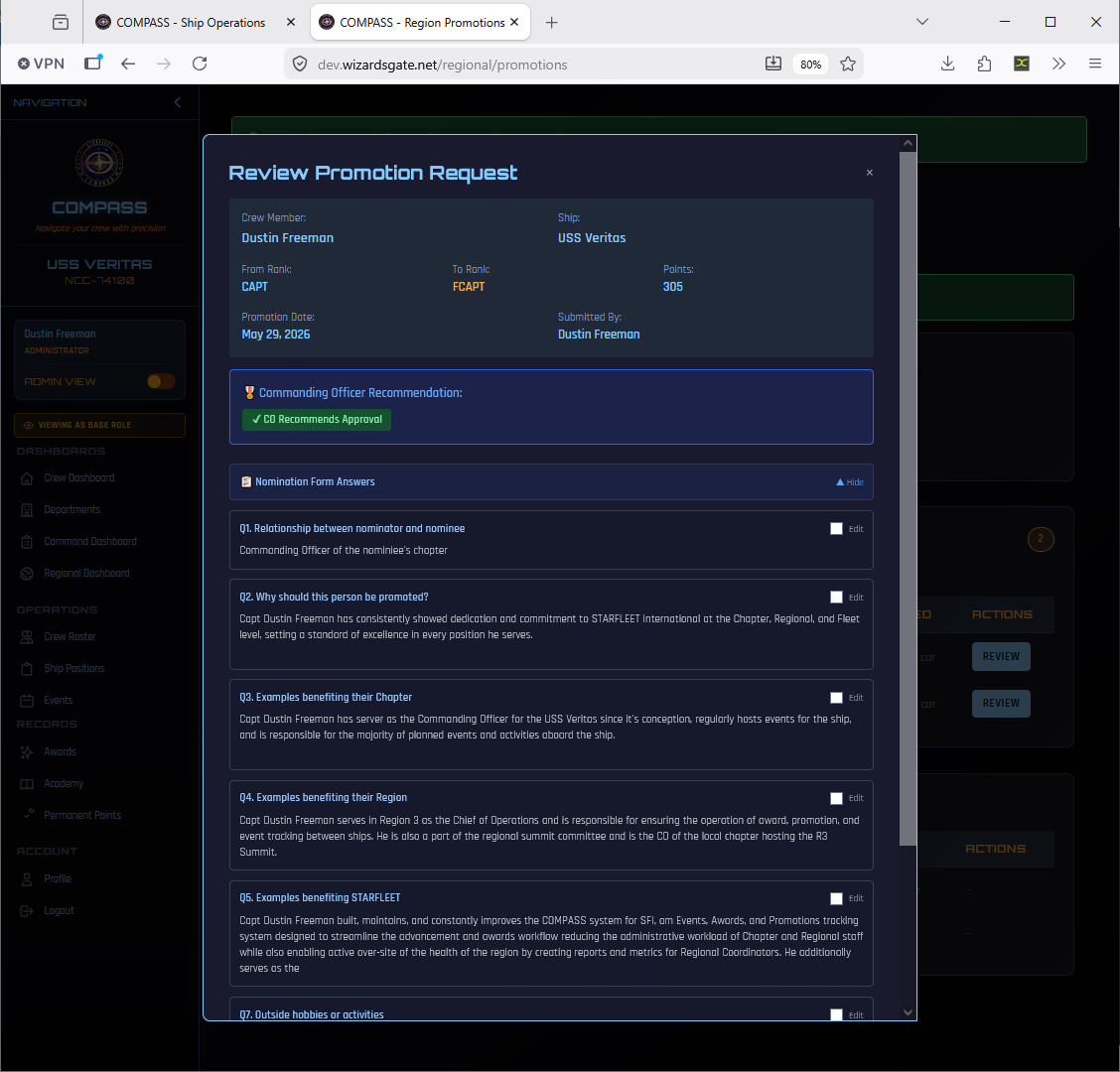
Review the full submission including all nomination form answers. Edit any answers inline if needed.
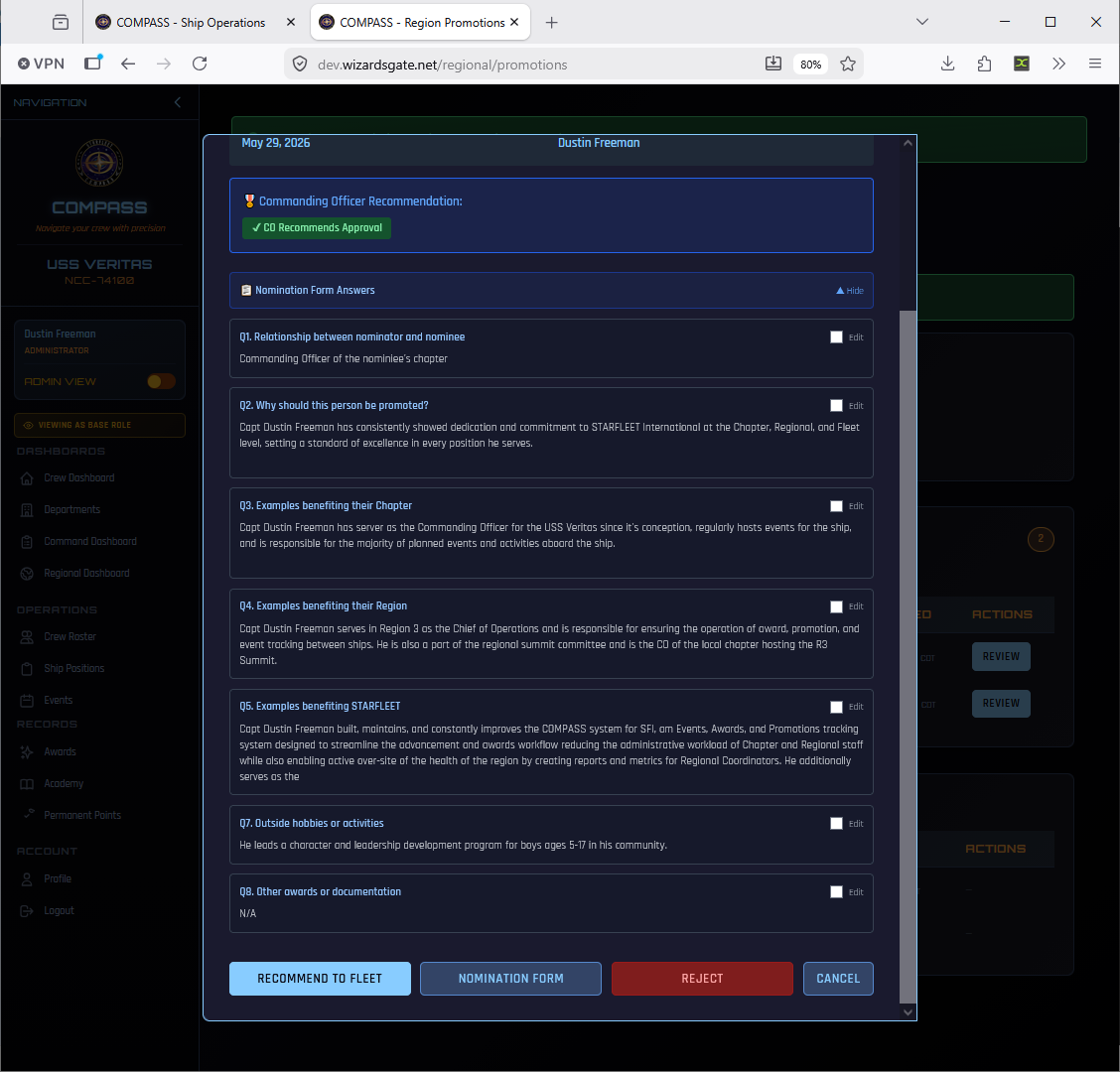
You have three options:
| Button | Action |
|---|---|
| Recommend to Fleet | Forwards the nomination to SFI Fleet Command with optional endorsement notes |
| Nomination Form | Downloads the pre-filled Flag Promotion Nomination Form PDF |
| Reject | Rejects at the regional level — CO is notified with your reason |
Downloading the Nomination Form PDF
Before forwarding, download and review the generated PDF using the Nomination Form button. COMPASS pre-fills the entire form from data already in the system.
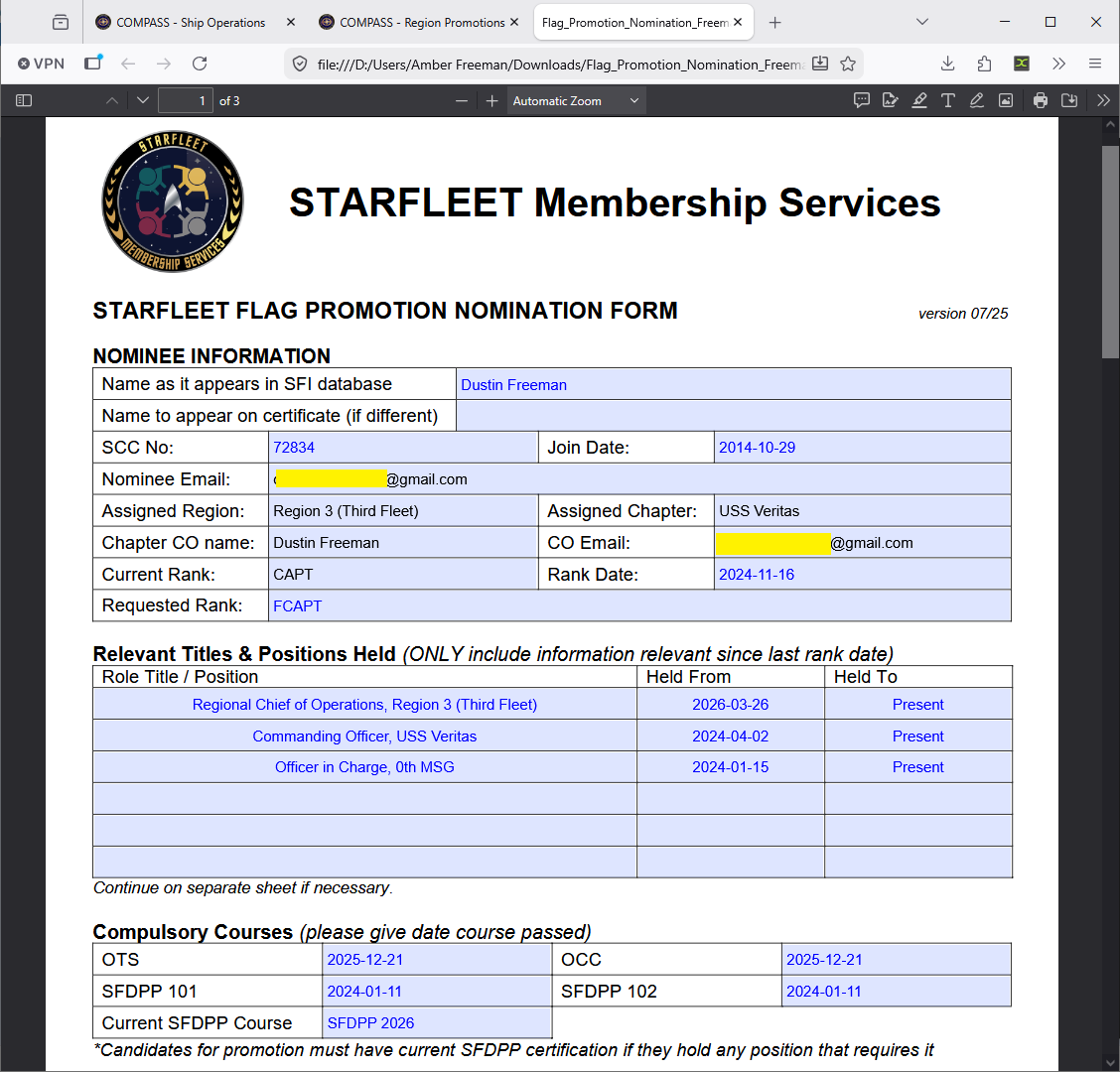
The PDF includes nominee details, current/requested rank, all positions held since last rank date, OTS/OCC/SFDPP completion dates, and the CO's narrative recommendation answers. Review it carefully — this is the document SFI Membership Services receives.
Recommending to Fleet
Click Recommend to Fleet. A confirmation dialog appears where you can add optional notes to Fleet Command.
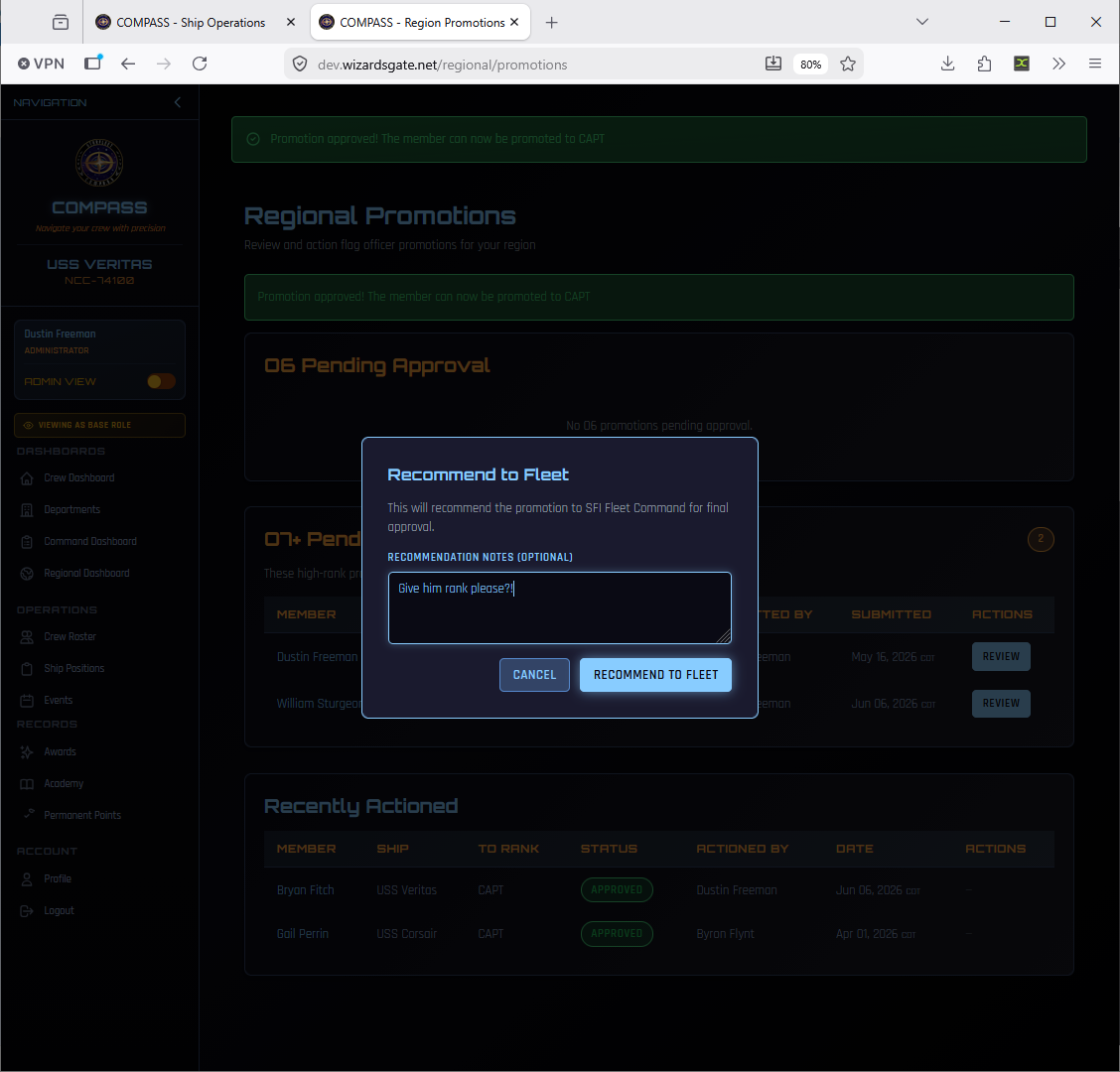
Click Recommend to Fleet to confirm. COMPASS returns to the Regional Promotions page with a confirmation banner.
After Recommending — Awaiting Fleet Decision
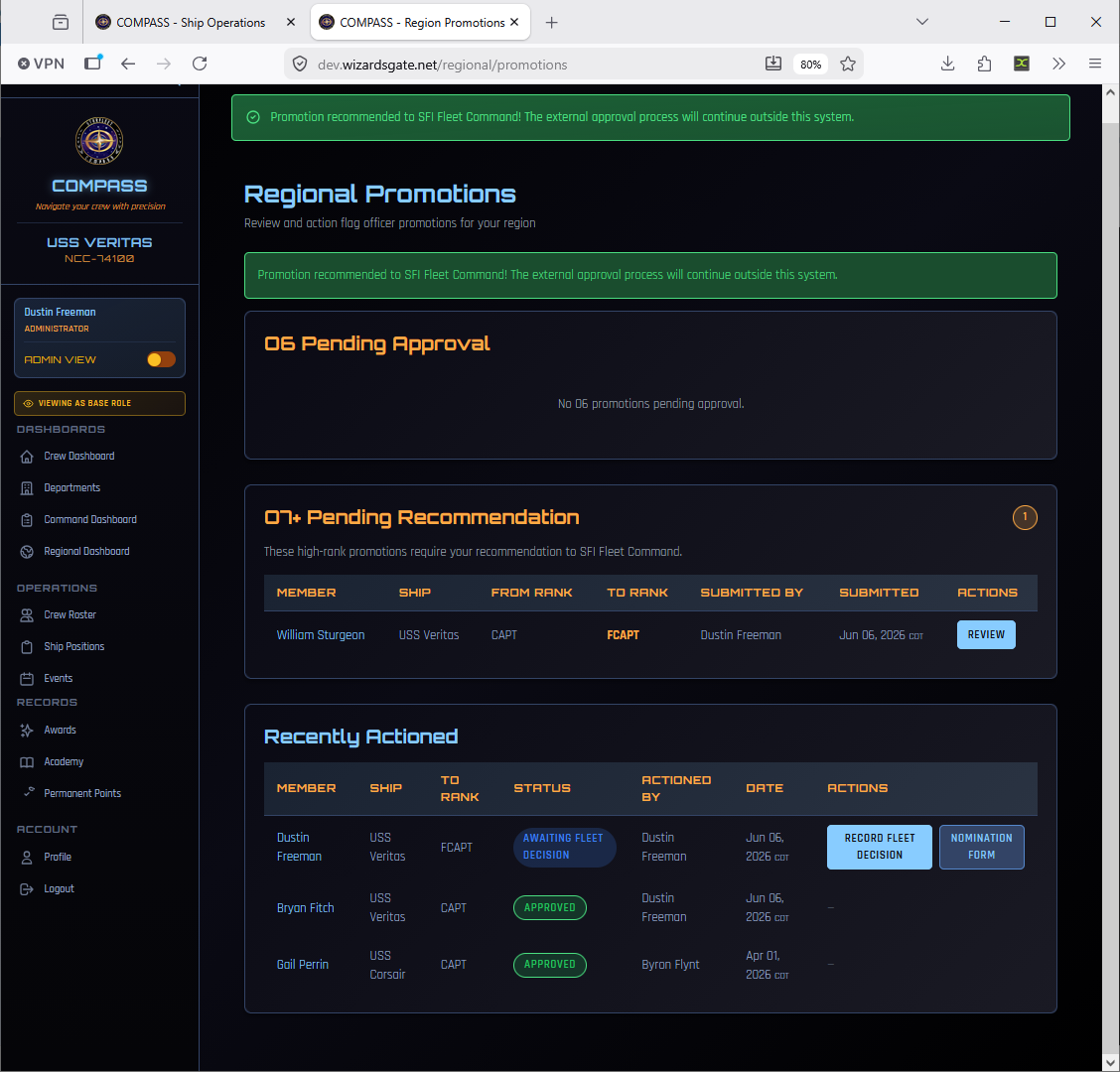
After forwarding, the promotion moves to the Recently Actioned table with a status of Awaiting Fleet Decision. Two action buttons remain available.
Note
The external approval process now continues outside COMPASS. SFI Fleet Command will review the nomination and respond to you directly. Submit the PDF to SFI Membership Services per the standard process if you haven't already.
Recording the Fleet Decision
When SFI Fleet Command responds, return to the Regional Promotions page and click Record Fleet Decision on the promotion row.
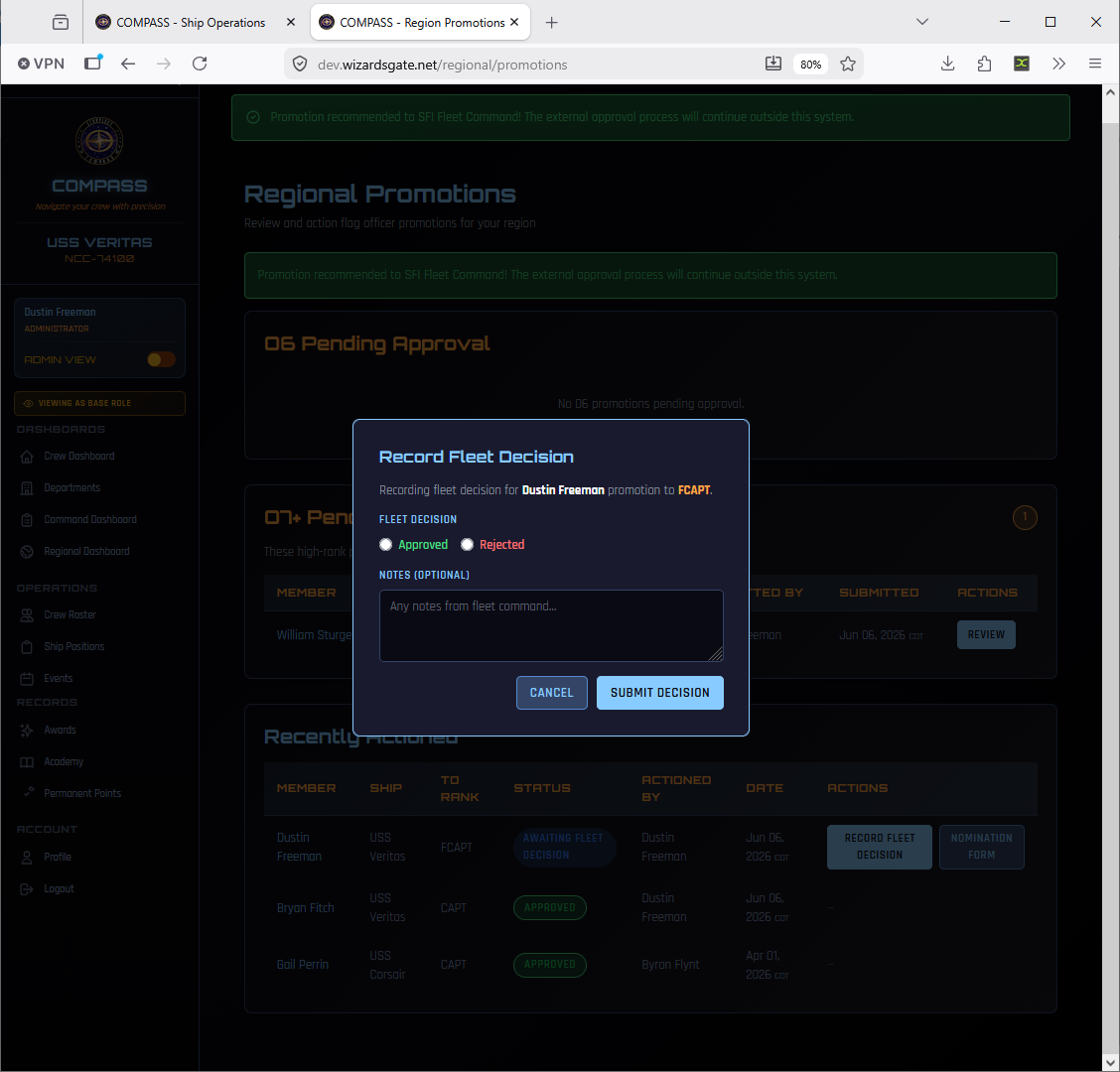
Select Approved or Rejected, add any notes from Fleet Command, and click Submit Decision.
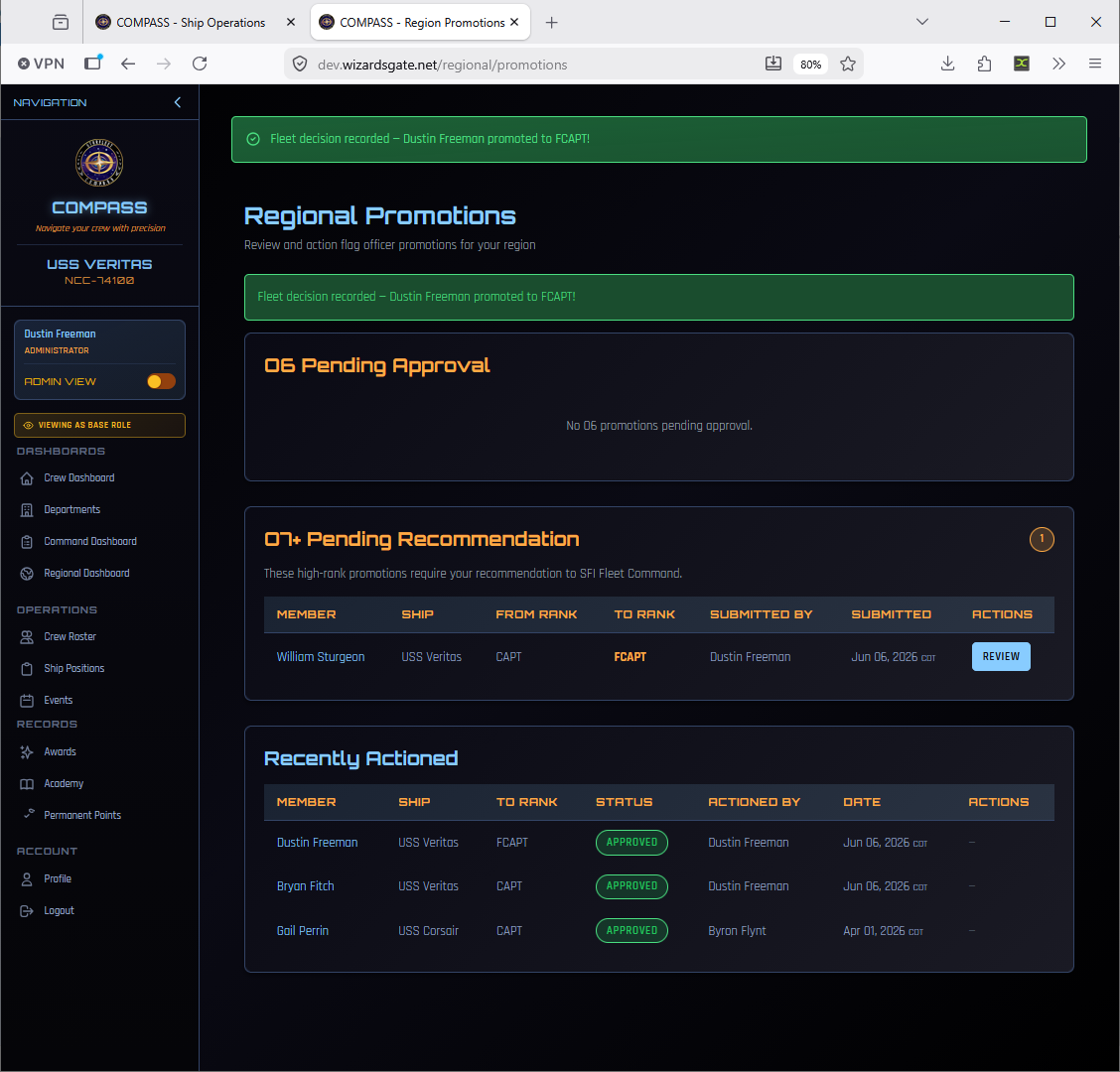
If approved, the member's rank updates in COMPASS immediately and they receive an email notification. The promotion status changes to Approved in the Recently Actioned table.
Promotion Workflow Tips
- Check the Pending Actions panel on your Regional Dashboard daily — it surfaces all promotions waiting for your review across all ships
- Run SFI Eligibility Sync on a ship before processing a batch of their promotions to ensure OTS/OCC data is current
- Download and review the Flag Promotion PDF before forwarding to Fleet — easier to catch data issues in the PDF view than in the form
- Edit nomination narrative answers inline before approving if the CO's responses are vague — stronger narratives mean faster SFI processing
- For O-7+ promotions, record the Fleet decision in COMPASS as soon as you hear back — it keeps your Recently Actioned table accurate and notifies the member promptly